


 View Profile
 View Forum Posts
 Visit Homepage

This will guide will describe how to fix audio sync in a DVD without reconverting and keeping the menus,extras. I will just describe how to fix a constant out of sync where it's the same out of sync in the entire movie. You can use similar method to fix progressive out of sync where the out of sync get worse and worse but you then need to adjust the delay several times in an audio editor.
Tools
Media Player Classic
PGCDemux
Muxman
Vobblanker
delaycut
All the above tools are FREE!
Preparation
Open the first VTS_0X.00.vob from the DVD using Media Player Classic and PLAY the video and at the same use the + or - on the keyboard to see how much you have to adjust the audio delay.
Guide
We start by separate the video and audio from the DVD using PGCDemux.
Open the VTS_0X_0.ifo from the original DVD VIDEO_TS folder in PGCDemux.
Choose to demux video and audio streams and choose the main PGC Title.
Process!
If the delay is small, -300ms to 300ms or less, you can now make a new DVD directly using Muxman. If the delay is more than 300ms see below.
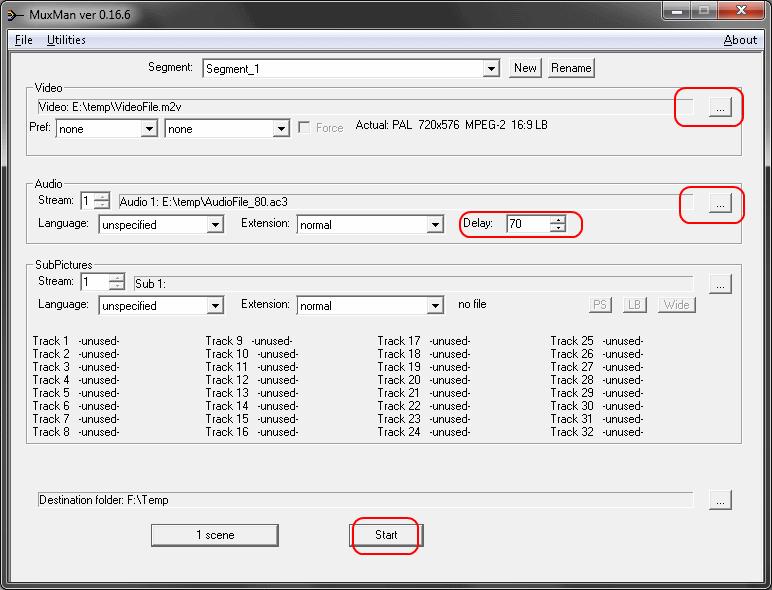
In Muxman choose the video .m2v file and audio .ac3/.wav/.mp2 file.
Set the delay you checked in Media Player Classic.
Start.
Last we add add back menus, extras using Vobblanker. You can skip this step if your source didn't contain any menus or if you just don't need menus.
Open the original DVD VIDEO_TS.IFO in VobBlanker.
Set the output folder.
Select the main VTS_0X*.VOB and then choose the main titleset you want to replace with new created DVD.
Click on replace and choose the NEW created DVD VTS0X_00.ifo from muxman.
PROCESS!!
Done.
You can now burn the new DVD using for example ImgBURN.
Problems
If the delay is greater than 300ms then we need to fix it before using muxman. If your audio source is ac3 audio you can use DelayCut. Just open the ac3 and set the delay. Then continue with muxman as describe above. Choose the new created ac3.
If your audio source is wav or mpa/mp2 audio use instead Audacity to insert silence or cut it.
Thanks to manono for most of the ideas for this guide.
+ Reply to Thread
Results 1 to 5 of 5
-
I'm a MEGA Super Moderator

- Aug 2000
- Sweden


-
I thought as I was reading along that the process looked familiar. Now guns1inger, I, and others, won't have to explain the process any more - we can just point to this guide, complete with pictures. Thanks!Originally Posted by Baldrick
The users will probably also want to get the Celltimes.txt from PGCDemux (it contains the chapter points) and then add them back in during the Muxman step with File->Import Chapter.
Also, although Audacity will work well to adjust a delay in PCM WAV audio (and I'm the one that suggested using it in my post), I had forgotten that DelayCut works not just with AC3 audio, but also with WAV, MPA, and DTS audio. -
Same goes, this was a wonderfully simple method, never knew about the Media Classic feature, then my 13yo nephew says "yeah, I knew that"
now one more last (as if) question, do any of you know of any freebee simple video edit sweeps, I used to do weddings n stuff no VHS and that was dead easy, as I had most of the images down pat n just had to INSERT some music n occasionally images,.. but would like to mess around with music that I have recorded... so stuff I could throw images onto music and vice versa... (Something that can deal with VOB files preferably. only coz they are supposed to be the 'best' quality..
anyway.. cant thank you enuf for your help in the past... God bless n cheers
-
You could always extract the audio from the DVD as described in the guide, use Audacity to replace whatever part(s) you like with your own audio, and then stick the edited audio back into the DVD, also as described in the guide.
Images is something else. You could make little DVDs of them by encoding them and add those little DVDs into the original DVD using VobBlanker (thus avoiding any reencoding of the existing DVD). But the process is a little tricky. Definitely easier would be to replace an existing chapter (or one created by splitting one using VobBlanker) with your new little image DVD or several. The VobBlanker page has guides to splitting chapters after which you could replace some small one you created during the split with your new image DVD. -
Thank you for that manono, that has given me ideas that I hadn't thought of .. but as you say, and make apparent, this method is only really good for small VOB files in and upto that 1.048 Gb limit, hence not something to work on 1.5hr wedding video with music inserts of certain sections. Like I said, on VHS I used to be able to dub a song (mix and/or solo), with audio fade in n fade out at actual time on a simple home system. The trouble with most simple programs like Movie Maker (apart from the frustrating instability) has no simple control ... or pay hundreds for something you may use once a year... but.. thank you anyway, n God bless ya B-)




 Quote
QuoteSimilar Threads
-
how to fix audio out of sync in DVD !
By deejay.2001 in forum AudioReplies: 6Last Post: 23rd Jan 2012, 11:19 -
Is it possible to fix audio sync without reauthoring?
By likwid8 in forum Authoring (DVD)Replies: 4Last Post: 13th Nov 2011, 00:59 -
avi audio out of sync fix?
By the_shyguy in forum Newbie / General discussionsReplies: 7Last Post: 7th Jan 2009, 21:02 -
fix audio sync in dual audio avi
By jin007 in forum Newbie / General discussionsReplies: 2Last Post: 19th Jul 2008, 10:07 -
Audio is out of sync after using HDTV2DVD, how can I fix this?
By geek2330 in forum Newbie / General discussionsReplies: 20Last Post: 4th Oct 2007, 16:31