


 View Profile
 View Forum Posts


Streaming Digital TV Over A Network:
This guide will walk you through the steps involved with streaming digital tv over a network.
Hardware Required:
1. A fast network (15mb/s for hdtv, 8mb/s for sdtv, as an absolute minimum)
2. A Digital TV Card with BDA Drivers, or a TwinHan DVB-T Card
Other Pre-requisites:
1. You must be able to receive DVB-T signals
2. You must live in:
a. Australia
b. United Kingdom
c. Finland
d. Germany
e. Netherlands
f. Sweden
g. Tiwan
Software Requirements:
1. Webscheduler ( https://www.videohelp.com/download/WebScheduler2.1.1.0.zip )
2. Java
3. VLC ( http://www.videolan.org/ )
Please note, that you MUST use the version of Webscheduler I have referenced above.
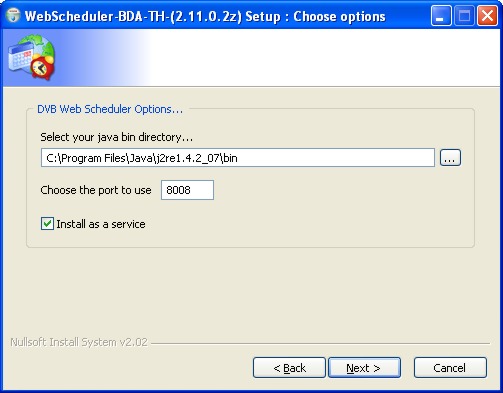
First, you must install Java, and when you have download and install Webscheduler. Follow the prompts, and when asked choose a port you with to use to access Webscheduler. I highly recommend a firewall to block access to this port from the internet.
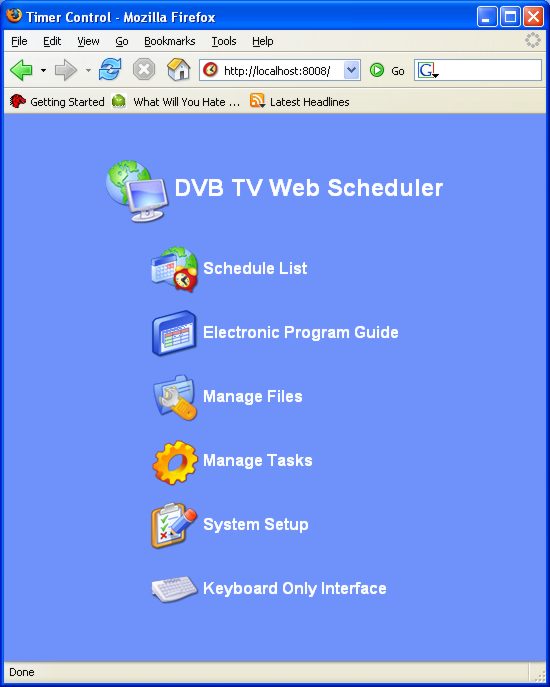
When Webscheduler is installed, in your web browser (I use Firefox), type “http://localhost:[Your Port]” without the “” and replace [Your Port] with the port number you setup when you installed Webscheduler. You should see the following screen:
You now need to setup Webscheduler to be able to receive digital tv. Click on the “System Setup” link, then click on “Card Setup” and make sure your card is in the “current card list.” If it is not, make sure you have the BDA drivers installed correctly, or you have the latest TwinHan DTV-T drivers installed (if you have that particular card).
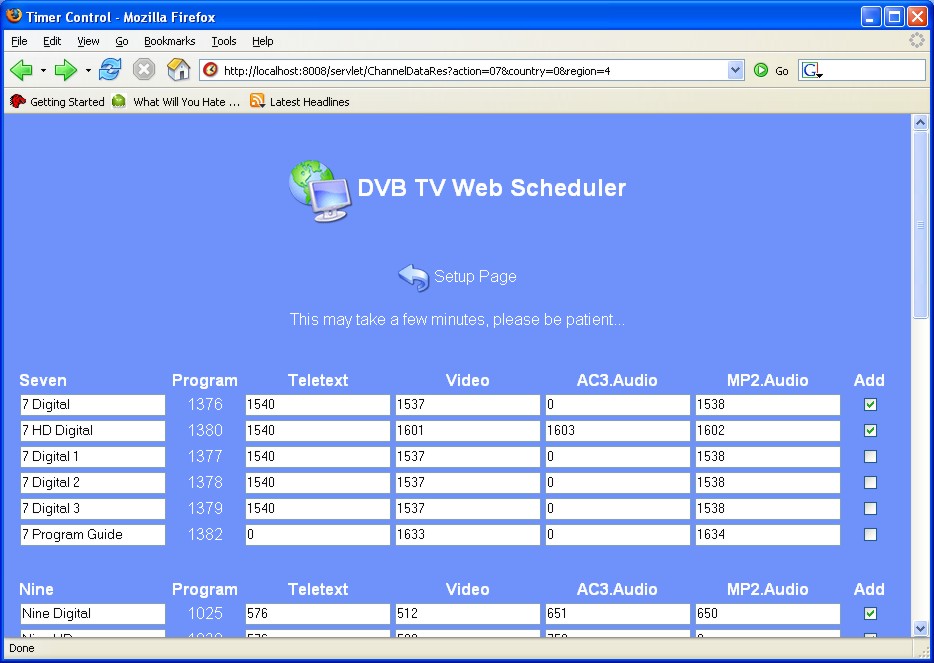
Go back to the Setup page and click on the “Channel Settings” link. Click on “Scan Channels” then Click on your country’s name, then click on your region, then click “Scan All.” After a short amount of time, your tv channels should appear, and click on the check boxes to add them.
Click “Add Selected” at the bottom of that page, and then return to the setup page.
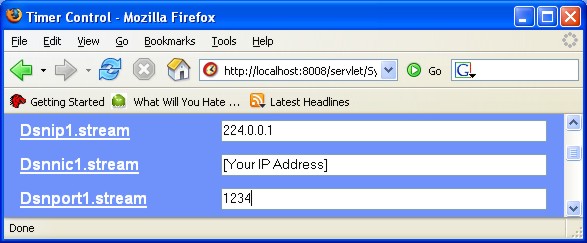
Click on “Server Config” and then enter the following information:
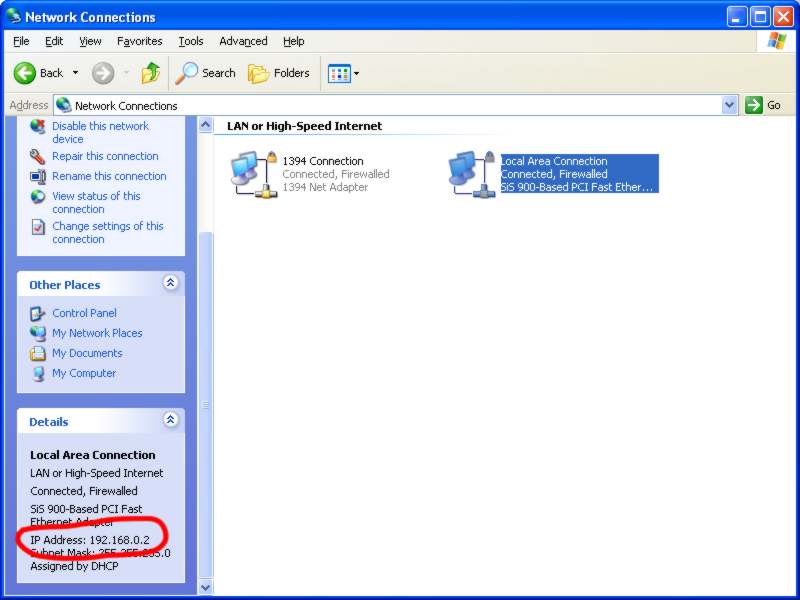
Replace [Your IP Address] with your computer’s IP address, which can be found in Windows XP by navigating to the control panel, and then switch to classic view, and then click on “Network Connections.” Click on your network card you use to access the network, and your IP address will appear on the left column:
When you have entered your IP address, click on “Update.”
Click Home and you now have Webscheduler set up correctly.
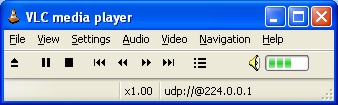
Open VLC, and click on the open button (), than click on the “Network” tab. Click on “UDP/RTP Multicast” and enter “224.0.0.1” into the Address bar, and leave the port number at “1234,” then click OK. VLC Should look like this:
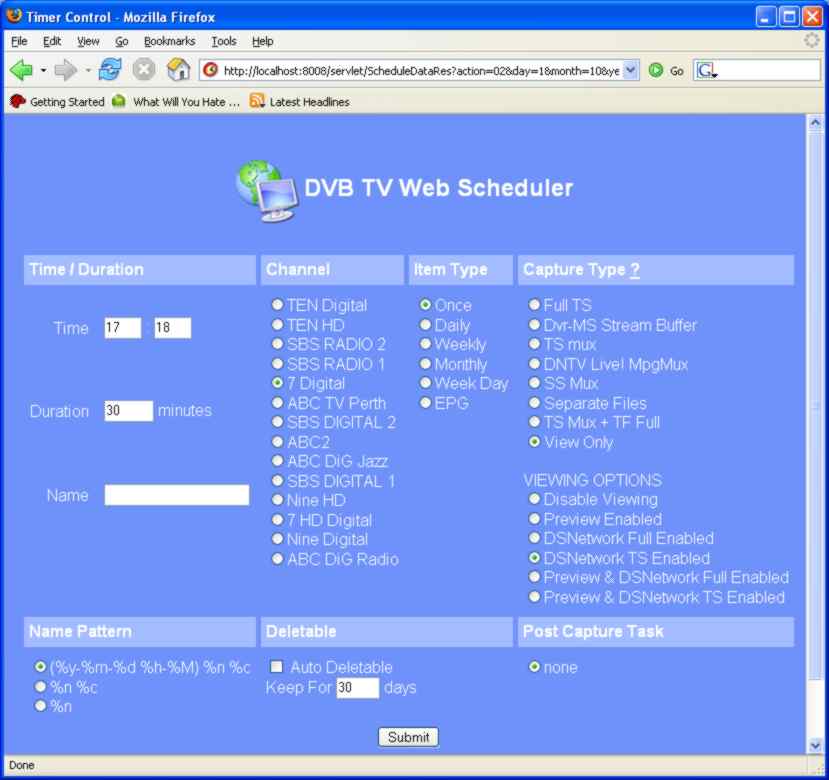
Next, go to the home page of Webscheduler and click on “Schedule List,” and then click on “Add New Schedule.” The current date should be highlighted, so click on that. You now need to enter the details of the ‘dry recording’ (as I call it), so enter the current time, and enter a suitable duration for which you wish to have the stream active. You don’t need to enter a name. Next, select your channel, and then in the Capture type box, click on “View Only,” and then select “DSNetwork TS Enabled” in the View Options box. Your screen should look something like this:
Click Submit.
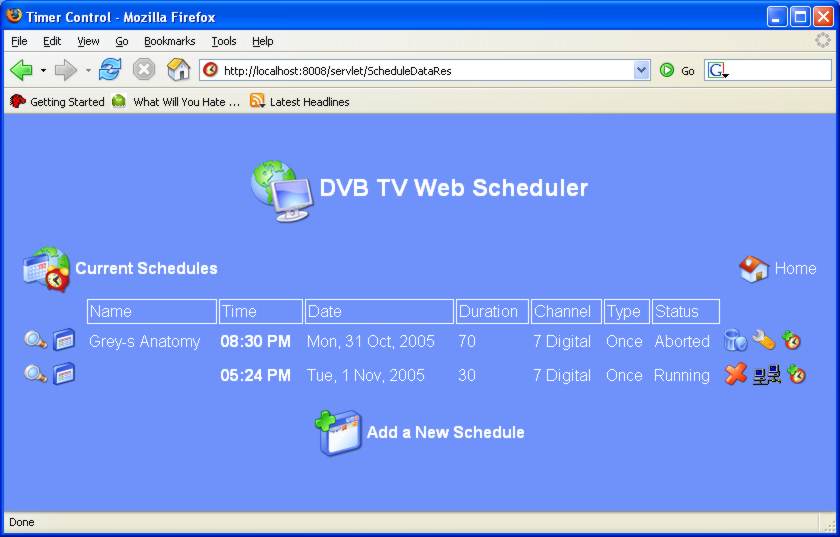
You should now have the “Timer Controll” page in front of you. Click refresh once the ‘dry recording’ has started. Your screen should now look like this:
You need to click on the Computer icons to activate the stream. They should light up to show an active stream ().
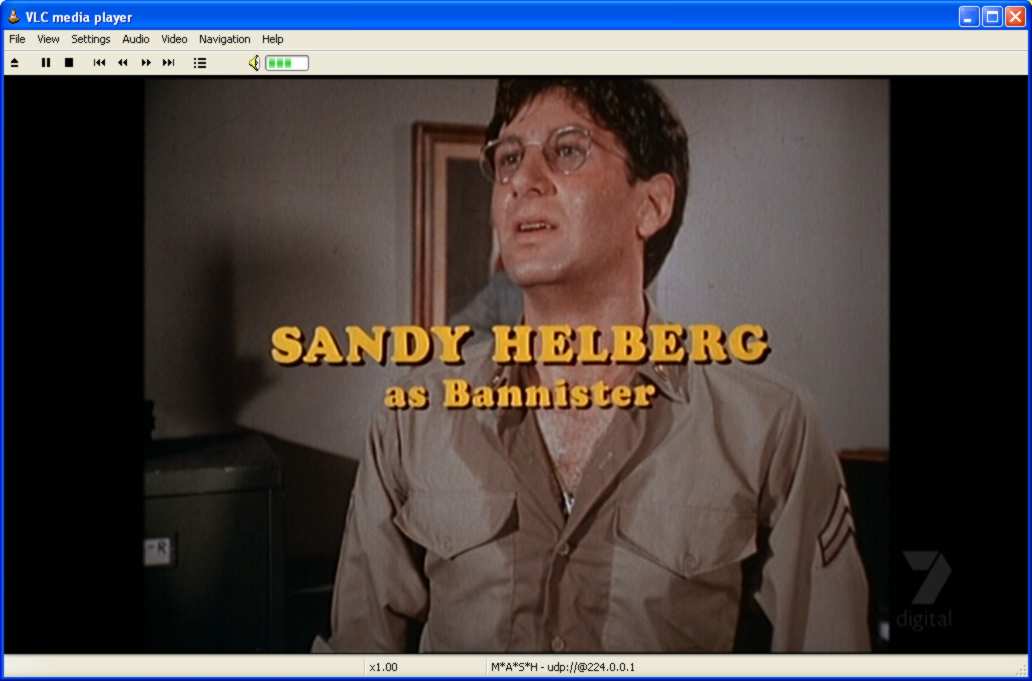
VLC should start playing your stream a few seconds after you have clicked on the computers, and it should look something like this:
Enjoy, I will update if there are any issues.
+ Reply to Thread
Results 1 to 23 of 23
-
-
Not bad minchjp,
Using
MSI Megasky 580 USB DVB stick:
XP pro :
Webschuduler (the version you stated above):
VLC :
100Mbit ethernet:
I got this working well for dvb video stream over lan however i can only get sound on 1 channel (BBC NEWS 24) here in the UK. This channel has only 1 entry for MP2.Audio : 282
The other channels ALL have TWO entries for MP2.Audio
eg
Channel : BBC2
Frequency : 634000
Bandwidth : 8
Program : 4284
Teletext : 225
Video : 221
AC3.Audio : 0
MP2.Audio 222,226
Although I can manually enter one of these settings neither will work on its own.
I really want to get audio on BBC1 and Scottish TV working in time for the world cup games starting from mon 12 june. (In order to stream the live stream to my workmates on the LAN).
If I cant get Audio working - I will stream the video and we can get commentary from radio
Any help or suggestions appreciated.
Mark0 -
Hi
I have the almost the same problem, but I get no sound completely. I have read elsewhere that I should take the Line Out from my TV card and connect it to the Line In of my sound card. I can see that that might work, but why does it work that way?
Cheers
Dave -
OK got DVB-T streaming working (both video and audio)using jtvlan and the latest version of dvb webscheduler. It is however a 60 second lag behind live tv - but good enough for my purposes.
-
 Like others whose messages I have read on this forum, I found I had video but no audio when I tried to stream the output from my DVB-T card over my local network. I resolved this by NOT using DVB Web Scheduler. I don't know if it will work for everyone but here's how I did it.
I started my WinTV application (WinTV2000) in the normal way and selected Record to create an MPEG file on my hard disk. With the recording still running (i.e. WinTV was still writing to the MPEG file) I opened VLC Media Player and set it up to stream the same MPEG file over UDP224.0.0.1. Picture and sound are both near perfect and there is no noticeable lag between video and audio
So even though the file is still being written too by the WIN TV application, VLC has the capability to read from it.
Give it a go - what have you got to lose
 Regards
CTC33 -
Hi I have another kind of problem... when I connect to Webscheduler, I'm not able to set the "Dsnip1.stream,Disnnic1.stream,dsnport1.stream" because it isn't preset...
How can I resolve the problem? -
for those that have the saem problem with the DSNIP1 etc., I found you have to start a streaming recording and then the entries appear in the server config screen. After that all seems okay.
But I don't get sound on the streaming ! -
Hello,
For streaming under linux you can use mumudvb : http://mumudvb.braice.net
It allows you to stream easely a full transponder in multicast without knowing the PIDs etc ... -
Originally Posted by braice_fr
I'm a new user on linux and i realy intresting about streaming transponder over lan, i have the following quetions if you can help me:
1) suggest me a PCI card working on linux (i don't care about the cost)
2) is it possible the PCI card (run on linux) suport CI common interface for encripted chanels? so i can watch the whole transpoder simultaneously on my Amino set top boxes.
2) is it possible to have more than one PCI cards on my pc to stream more transpoders?
Thanks george -
I don't see any checkmarks...
http://img72.imageshack.us/img72/9518/webschedulerwv6.jpg -
It appears as if this 'special version' of WebScheduler is no longer available. (domain expired)
Anyone know of a mirror or could upload this file somewhere?//Burbruee -
You can find a copy of the required version here: http://www.brainbeatproductions.com.au/web-scheduler/WebScheduler2.1.1.0.zip
-
I'm a MEGA Super Moderator

- Aug 2000
- Sweden


Thanks! I added a copy to our download server also, https://www.videohelp.com/download/WebScheduler2.1.1.0.zipOriginally Posted by adsman -
I downloaded .zip file and exctracted it. There's nothing to install. How to proceed?
I ran start-server.bat and all I got was this:

-
Kosinus yeah I did the same thing, probably should have tested the software before posting it. Note to mods the link I posted is useless, can you please find the required version of webscheduler with an installer? Thanks
-
Yes a full install of Webscheduler would be much appreciated because I'd love to get this working in the house here. I've just finished running lan cables into ever room of the house

-
Here you go... I managed to pull it off archive.org.
http://ifile.it/gt0f2wu
A better bet though might be to use DV Scheduler... I'm trying this fork of the original software now.Last edited by redion1992; 16th Feb 2010 at 06:45.
-
I'm a MEGA Super Moderator
- Aug 2000
- Sweden
-
Thanks redion. I updated the https://www.videohelp.com/download/WebScheduler2.1.1.0.zip with the installation version. ( And checked so it doesn't contain any virus, http://www.virustotal.com/analisis/bc6bfda8ca1c89b79ffc1f2a9728ee4e9d7c6fd78364c5de7e6...e16-1266328441 )
-
Hi ,
I have few DVB TS files.
Can any one tell me, how can i stream/multicast it over my LAN for my testing purpose.
I believe VLC doesn't support streaming of DVB ts file, it will stream only one channel/pes no SDT, no EIT or original ts format .
dvblast, dvbstream works with only DVB Cards, not with files.
So can any one suggest good streaming tool.
Thanks in Advance -
Hi, Everything works for me, i have one problem: No "Add" check in box in scan results window...
Maybe anyone can help?
I tried all, Chrome, Explorer and Firefox... -
hi all
Freesatellitetv.me"The people who get on in this world are the people who get up and look for the circumstances they want, and, if they can´t find them, make them." - George Bernard Shaw -
New on this forum. I am interested on streaming TV, video over lan. I see that my country is not listed on the "requirements list" , could you tell me why this is "restricted" to those on the list?
I am in El Salvador, Central America. -
It probably had something to do with Webscheduler, which no longer exists under that name. (Remember, the requirements date from 2006.) El Salvador uses ATSC for terrestrial digital TV, not DVB-T. Sometimes that determines TV software choices. Software for DVB-T tuners often uses guide data carried in the broadcast, which is not provided in exactly the same way for ATSC broadcasts.Originally Posted by riky.lemus

 Quote
Quote
 Visit Homepage


Similar Threads
-
ffmpeg network streaming
By lusky in forum Video Streaming DownloadingReplies: 4Last Post: 23rd Aug 2010, 07:04 -
Samsung BD-p1600 - Streaming from Network
By aiannar974 in forum DVD & Blu-ray PlayersReplies: 0Last Post: 4th May 2010, 18:16 -
Streaming TV Over a network!
By Brianmaiden in forum Video Streaming DownloadingReplies: 6Last Post: 16th Nov 2009, 10:19 -
Streaming over a network, what format?
By ripit in forum Video Streaming DownloadingReplies: 4Last Post: 28th May 2008, 06:39 -
Are you using a network media streaming device?
By yoda313 in forum PollsReplies: 16Last Post: 21st Oct 2007, 22:19