


 View Profile
 View Forum Posts
 Private Message


StaxRip has received negative reviews from users who had difficulty installing the software.
Unfortunate since this is one of the best video conversion tools available.
This guide should help anyone having difficulty with the installation.
DVDGuy wrote an excellent guide worth reading for installation information.
http://www.digital-digest.com/articles/staxrip_h264_print.html
StaxRip-
- No spyware, adware or any other form of malware.
- Open Source, Freeware.
- No registry bloat, settings are saved in files within the application's directory or within the user directory.
.NET Framework 2.0: is required before downloading.
1:
There is no installer, so a directory must be created.
Create a case sensitive StaxRip folder in Program Files.
C:Program Files/StaxRip
2:
Download the Latest Version of StaxRip. Unzip/Extract all the files to the created folder.
C:Program Files/StaxRip
http://www.planetdvb.net/staxrip/download
3.
Create a Desktop Shortcut:
Right Click on StaxRip.exe > Send To > Desktop
4.
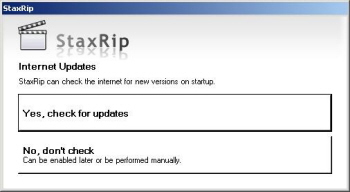
Run StaxRip from the Desktop. At this point the pop-ups begin, with simple click and go choices.
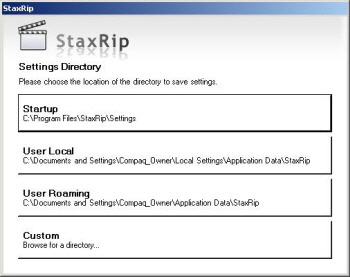
-Settings Directory > Startup
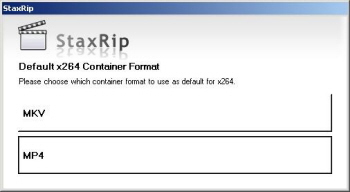
-Default x264 Container > MP4 note: you cannot make a wrong choice-explained later.
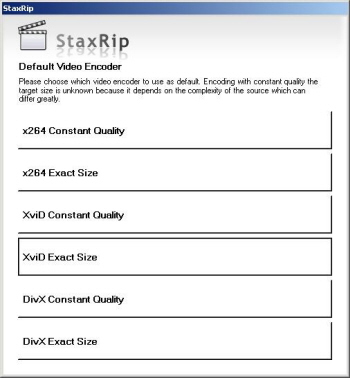
-Default Video Encoder > XviD Exact Size
-Check for Updates > Yes
5.
External Applications – Software Downloads
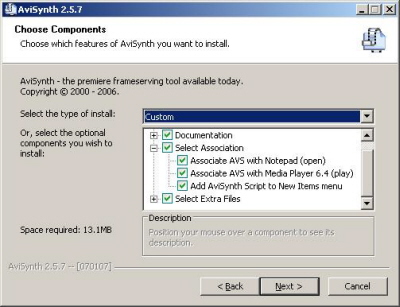
Note: AviSynth will be download in this step, when the Components dialog opens, I selected all of them.
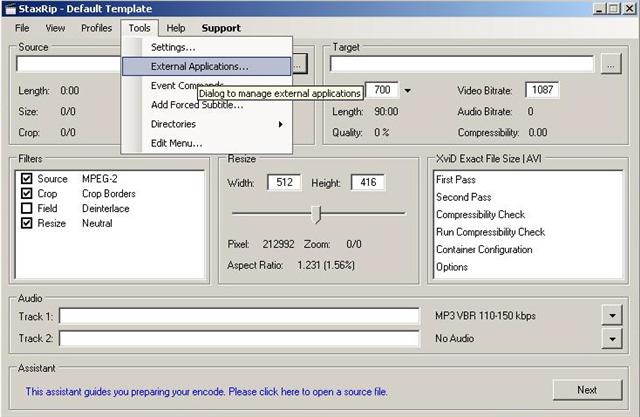
The StaxRip Default Template will now appear on your desktop. Open External Applications.
Tools > External Applications
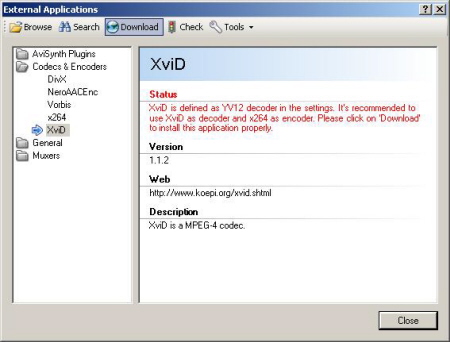
-Download the first pop-up application, it will automatically install or wizard through Windows.
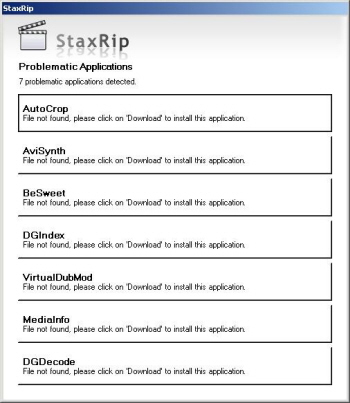
-The first download will be followed by Problematic Applications = Necessary Software.
-Click and download all the software.
6.
All the necessary software is downloaded and installed.
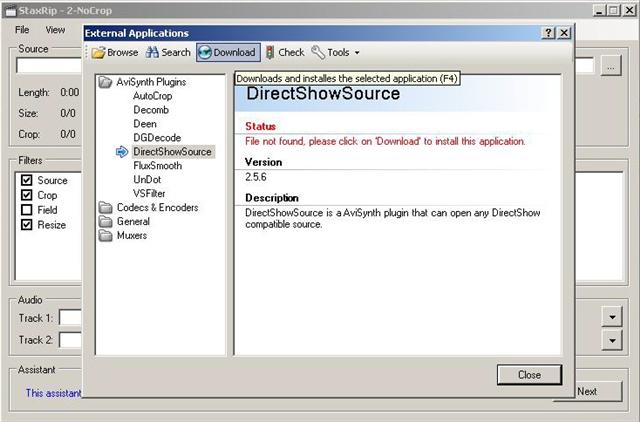
If a future application is needed, StaxRip will automatically pop-up the application for download.
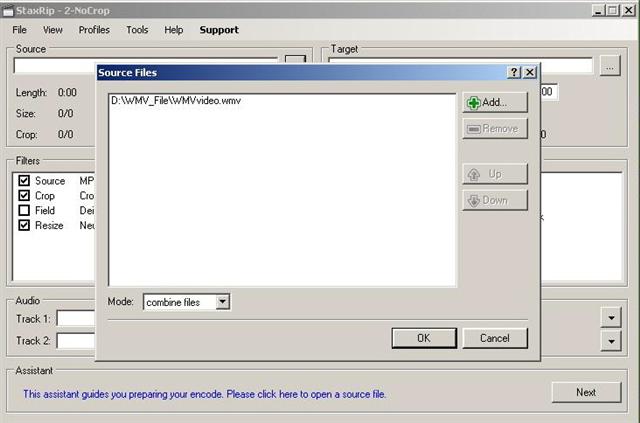
A popular example is when a .wmv video is loaded. A pop-up will appear indicating that DirectShowSource is needed.
As before, clicking the download icon will automatically download and install the software.
Conclusion:
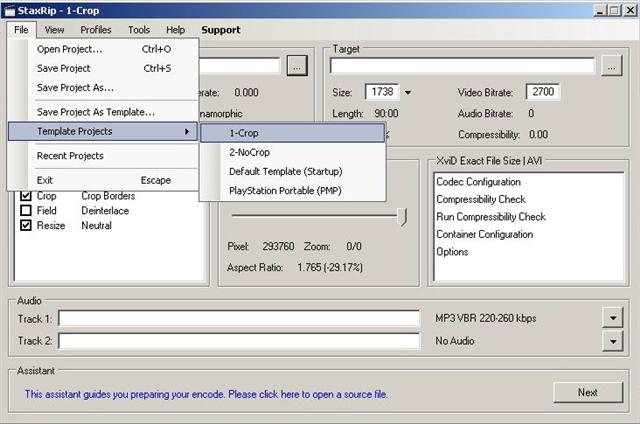
One of the best features of StaxRip is the use of templates. With the correct template installed, StaxRip is instantly simplified.
Unnecessary time consumption of learning all the settings for StaxRip is reduced to choosing a Template and loading a video file.
Installing Templates
+ Reply to Thread
Results 1 to 3 of 3
-
-
I haven't been able to get the latest version of staxrip to recognize java. I've tried installing older versions of java but it just won't find it. The only solution I've found is to use an older version of staxrip. I'm not sure where the official or feedback site is, but if anyone has any idea what the problem is, I'd welcome any help I could get. The ffmpeg demuxer also doesn't seem to work so I'm having some trouble demultiplexing xvid avis.
-
How can I repeat the initial setup screen? I dismissed it by accident. I wouldn't normally care, but I can't seem to set any of my temp or regular directories now.
 Quote
QuoteSimilar Threads
-
Unable to install an XVID codec for 64-bit Windows 7
By catchaat in forum Video Streaming DownloadingReplies: 10Last Post: 1st Jan 2011, 07:46 -
LordSmurf's XVID Guide
By Torrential in forum EditingReplies: 3Last Post: 19th Mar 2009, 06:34 -
Guide for downsizing xvid files?
By bogart219 in forum Newbie / General discussionsReplies: 5Last Post: 11th Oct 2007, 05:35 -
StaxRip Guide-w-Templates for High Quality XviDs
By Trac in forum User guidesReplies: 0Last Post: 24th Jul 2007, 01:53 -
How To Install Templates into StaxRip
By Trac in forum User guidesReplies: 0Last Post: 7th Jul 2007, 01:23